Kids Large Group Room
River Oaks Church - Updated March 2025
If you don't want to read, there is a video documentation of this room available here.
Before we begin talking about the screen to control the Large Group room, I'm going to explain how to access the screen.
The iPad needs to be:
-
Plugged in to the USB-C cable all the time
-
Open in the Q-SYS UCI application.
-
Have the Kids LGR option selected [on the main menu of the app]
With that out of the way, the rest of this guide will breakdown each section of the screen and what it does.
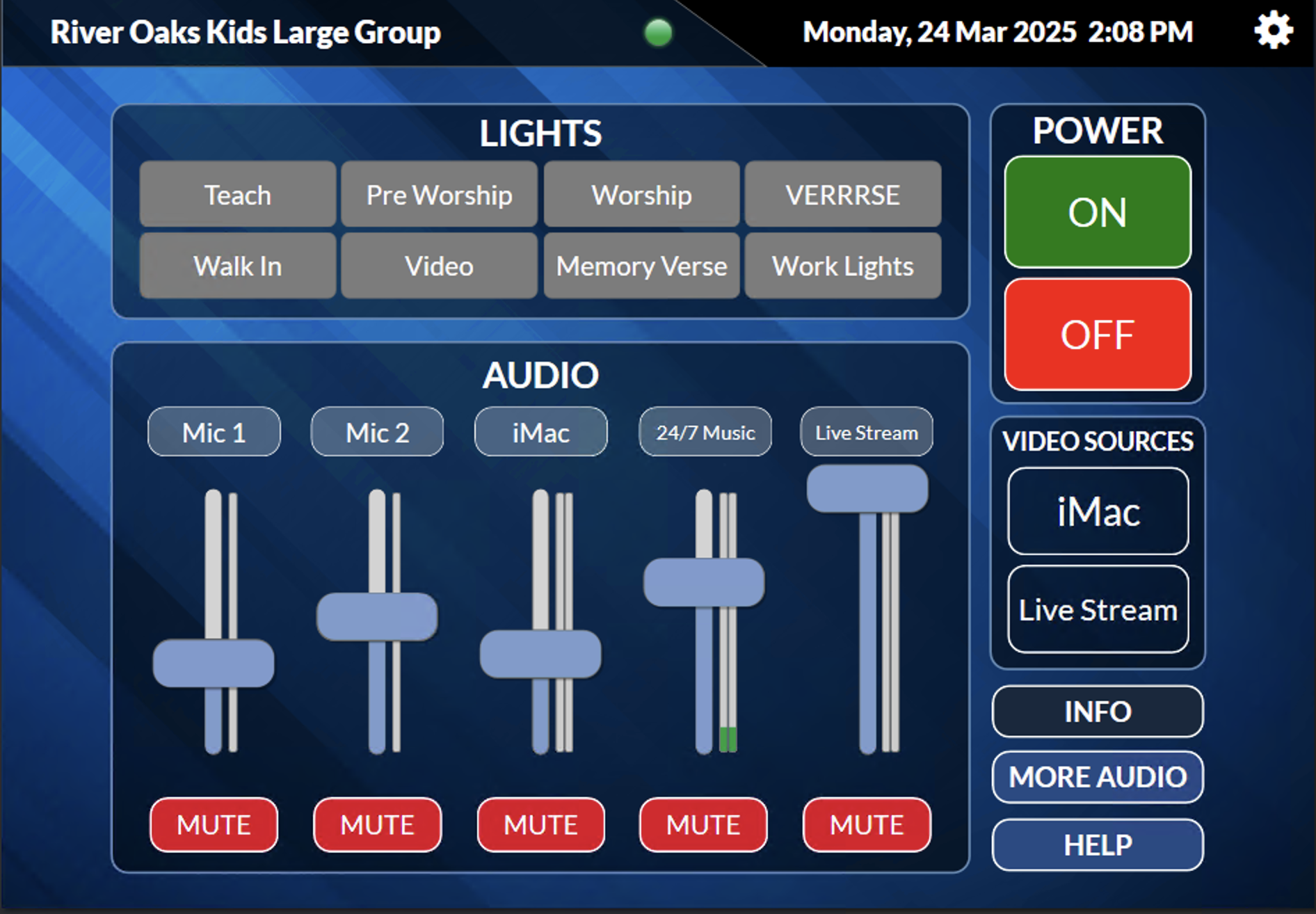
Power Controls
The power controls are located in the upper right hand corner of the screen. There is an ON and OFF button available. To power the room on, select the ON button. To power off, select the OFF button. Note: It won't let you intterupt a power on/off operation. Meaning, if you accidentally turn the system on, you will have to let it go entirely through the on cycle before turning it off.
Upon powering the system off, make sure to close ProPresenter on the iMac, as well as press the power button on the iPad to power it off.
Lighting
The lighting section is in the upper middle area of the screen. There are lighting presets available for many different scenarios. When powering the room on, you will need to press a lighting preset for any lights to turn on. Powering off will automatically clear any active lighting preset.
The presets are pretty straight forward, and aren't in any specifc order. If you want additional presets added, please contact Cole.
Audio
The audio section is in the lower left hand area of the screen. Each "column" is dedicated to each audio input available. The inputs are listed below. 1. Mic 1 -- The handheld microphone 2. Mic 2 -- The 'over ear' microphone 3. iMac -- The 3.5mm AUX cable plugged into the iMac. It will have audio from ProPresenter/Spotify 4. 24/7 Music -- This always-playing feed of music can be used whenever, but is primarily on the iPad so that there is an easy source of audio to test the system. If you are not receiving audio on this channel, you will want to contact a tech person, because that likely means that there are other issues. 5. Live Stream -- This is an audio feed from the auditorium, that will have audio from the Sunday services.
Video Sources (Coming soon)
There are two video sources available. 1. The iMac (which is what normally will get used) 2. Live Stream (The video feed that goes along with the "Live Stream" audio source. This is a video feed from the auditorium)
Info (Coming soon)
More info to come.
More Audio
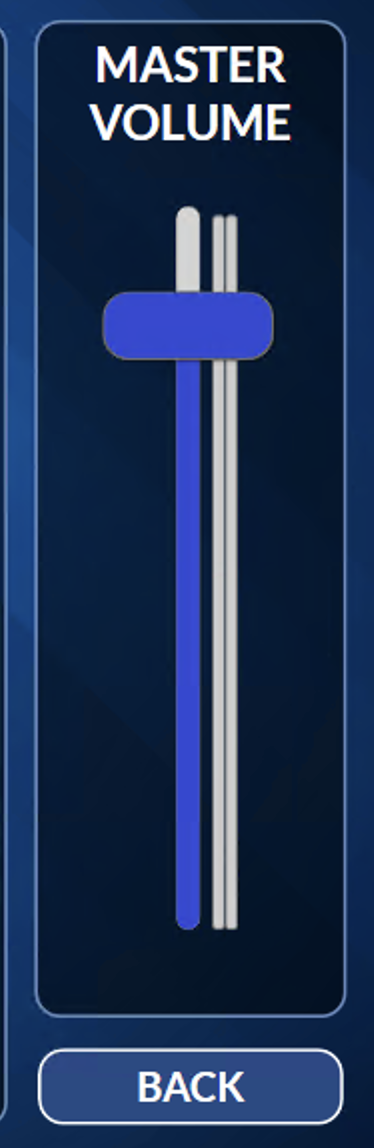
This is a larger screen of the audio mixer, but it also has a large slider on the right side of the screen ("Master Volume") that can be used to turn everything up or down. It's recommended to leave it in the position shown below for optimal sound.
Help
There will be more information on this screen eventually, but for now it features a QR code to open this article right here.
SUPPORT INSTRUCTIONS
If you are in need of assistance, please contact one of the following people
- General/iPad/Lighting/Control: Cole Good (cgood@riveroaks.org)
- Audio: Diego Sosa (dsosa@riveroaks.org) or Dave Kiefer: (dkiefer@riveroaks.org)