Creating a Service
River Oaks Church - Updated January 2025
All Español, Goshen, Tuesday Prayer, and Student services are synced to Planning Center, so they need to be created accordingly in ProPresenter. This process is the same for the auditorium and dark room.
First, open ProPresenter and navigate to the upper left hand corner. You will see libraries and playlists that are there for the different services.
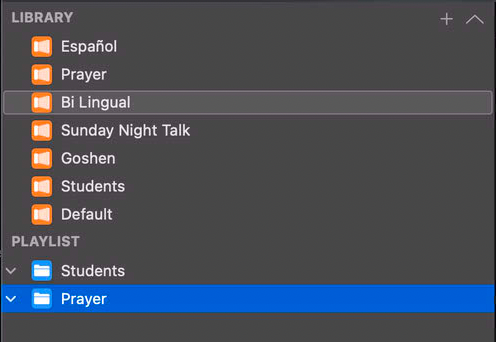
Libraries store all of the presentations (songs, message slides, etc), whereas Playlists are the actual combinations of songs, message slides, etc for each week.
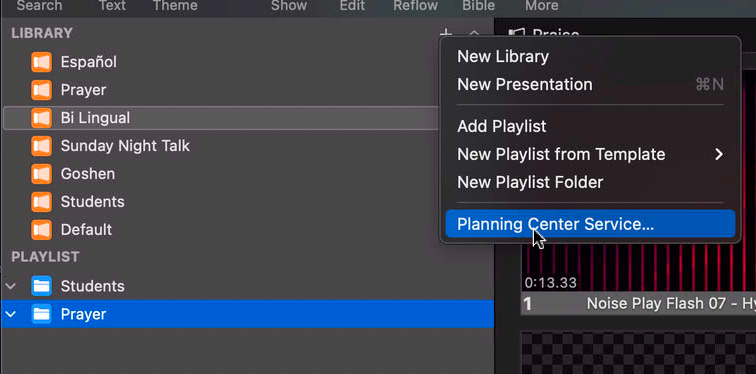
Every service type for each worship space has their own folder. To create the service, you need to first highlight the Playlist you want to add it to, then click the plus icon and select Planning Center Service.
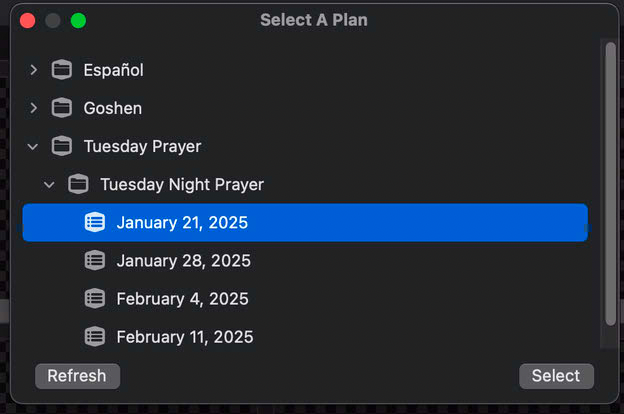
In this new menu (pictured below), you will navigate through the folders and select the service you want to add.
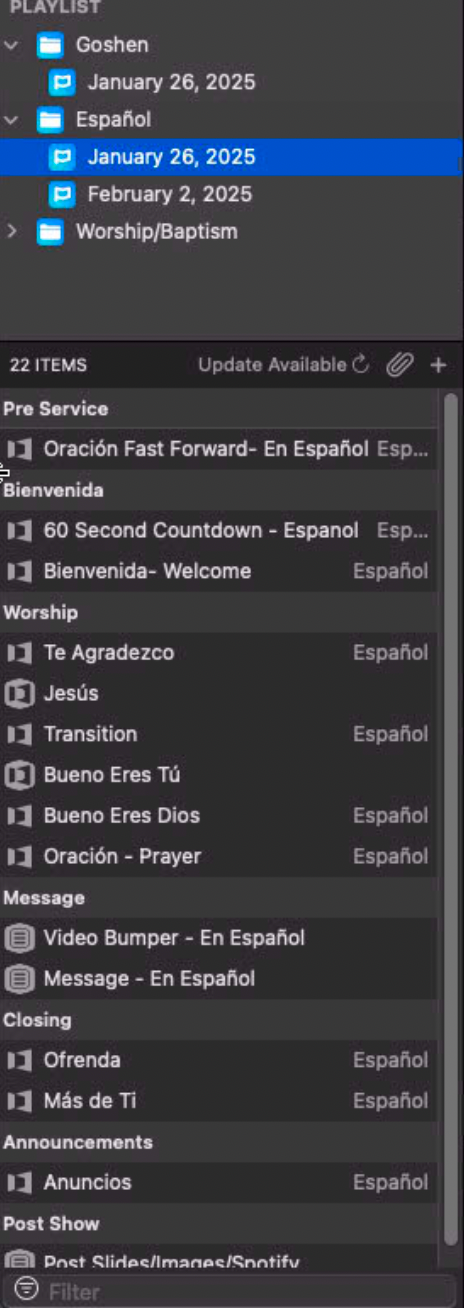
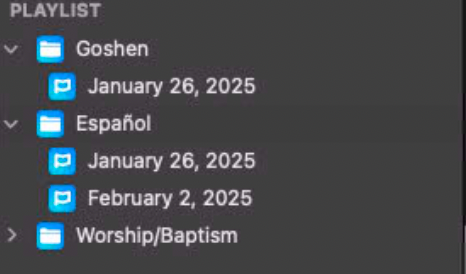
The playlists will look like this. After each service, you will need to right click on the playlist and delete it to remove it from the folder. The presentations inside of the playlist will stay on the computer.
If a service gets modified on Planning Center, you will need to update it inside of ProPresenter. To do this, click on the playlist, and select the Update Available option. This will automatically match new presentations to their playlist.