Google Drive Update
River Oaks Church - Created May 5th, 2025
Today, a church-wide change was made to our Google Workspace settings. This change implemented a policy that restricts file access to the user who created it by default, instead of automatically allowing anyone with a River Oaks Google account to access all files created (unless otherwise changed).
This was implemented with security in mind, ensuring only people who need access, get access.
This guide will show you how to restrict access to files, and make it so only you have access to them.
Restricting Access to Files
To restrict access to a file, first open up Google Drive, and locate the file you want to restrict. This can be a folder or file.
Then, select the file, and click the "Share" option (just like you would use to share the file with others).

You will notice that at the bottom of the menu that pops up, it states that Anyone in the River Oaks group can find or view the file.
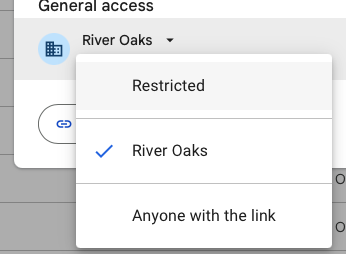
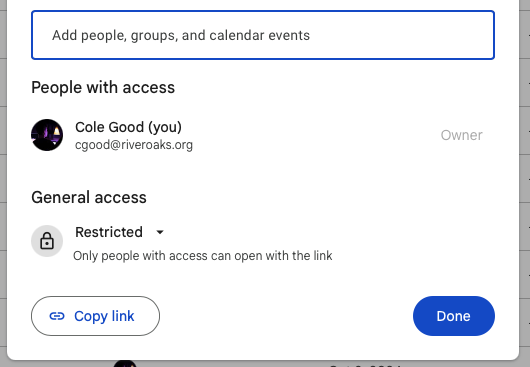
To fix this, you need to click on the word River Oaks, and select Restricted. This will change it so only specific people you share the file with will get access.
Summary
That's all! You can still share files with other users just like normal, but this will ensure that the file is only shared if you actually want it to be shared.
If you have any questions, please contact Cole or Dave!