203a and 203b
River Oaks Church - Updated March 2025
Welcome! To begin using rooms 203a or 203b, first make sure you have pre-approval to use the room via the church calendar.
Once you have approval, feel free to proceed with powering everything on. To do this, select the "Power On" button in the bottom center of the screen. If the iPad is not on, press the power button and open the "Q-SYS UCI" application.
The rest of this guide will explain each section of the control screen.
Power Controls
The room will automatically power everything on once you click the power on button on the main screen. When you are done using the room, select "Power Off" in the bottom right corner to power off. You will then have to select "Confirm" to make sure you want to power off.
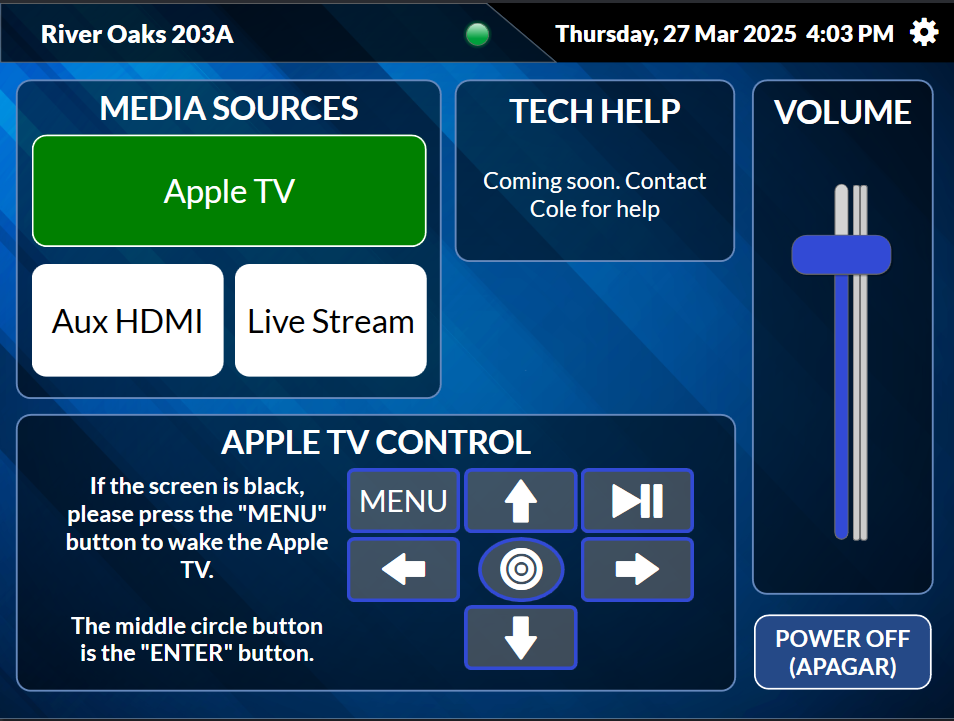
Media Sources
The media sources are listed below 1. Apple TV -- The Apple TV available for use in 203a or 203b. Depending on the room you are in, it will automatically pick the right Apple TV for you. Meaning, you'll be able to AirPlay to the Apple TV that is labeled the room that you are in. 2. Aux HDMI -- There is an HDMI port in front of the rack (if you open the door) that will allow you to plug in your own laptop. There is an HDMI cable in the drawer 3. Live Stream (203a only) -- This input allows you to watch the live stream coming from the auditorium. 4. Mirror 203a (203b only) -- This input will mirror the video and audio in 203a.
Volume
This slider will adjust the volume of the media source based on how high it is.
Apple TV Control
These options mimic what a typical remote looks like for an Apple TV, and they allow you to navigate through the menus just as if you had a remote in your hand.
SUPPORT INSTRUCTIONS
If you are in need of assistance, please contact one of the following people
- Cole Good (cgood@riveroaks.org)