Creating a Sermon Series Template in ProPresenter
River Oaks Church - Created November 2025 by Alfonso
Summary
When you add the lower thirds slides into ProPresenter You want to make sure you go into the first slide you go to edit slide. Then you go to themes and press the + symbol. After you add the name of the series you are doing. Then you want to import your template after you add your template you want to add a text box. Make sure it fits then you want to copy words from the series and make them the same font, and color is possible then you want to add another text box. After that is for the verse you will put that one at the bottom of the slide with the verse and if possible with the same font and color from the series. After you are done with that you want to press show and then you want to go into a slide press edit slide go to themes press on the theme you just created use it.
Step by Step
This is the step by step instead of the big paragraph I wrote to creat and import your lower thirds slides.
Select the first slide, then click Edit Slide.
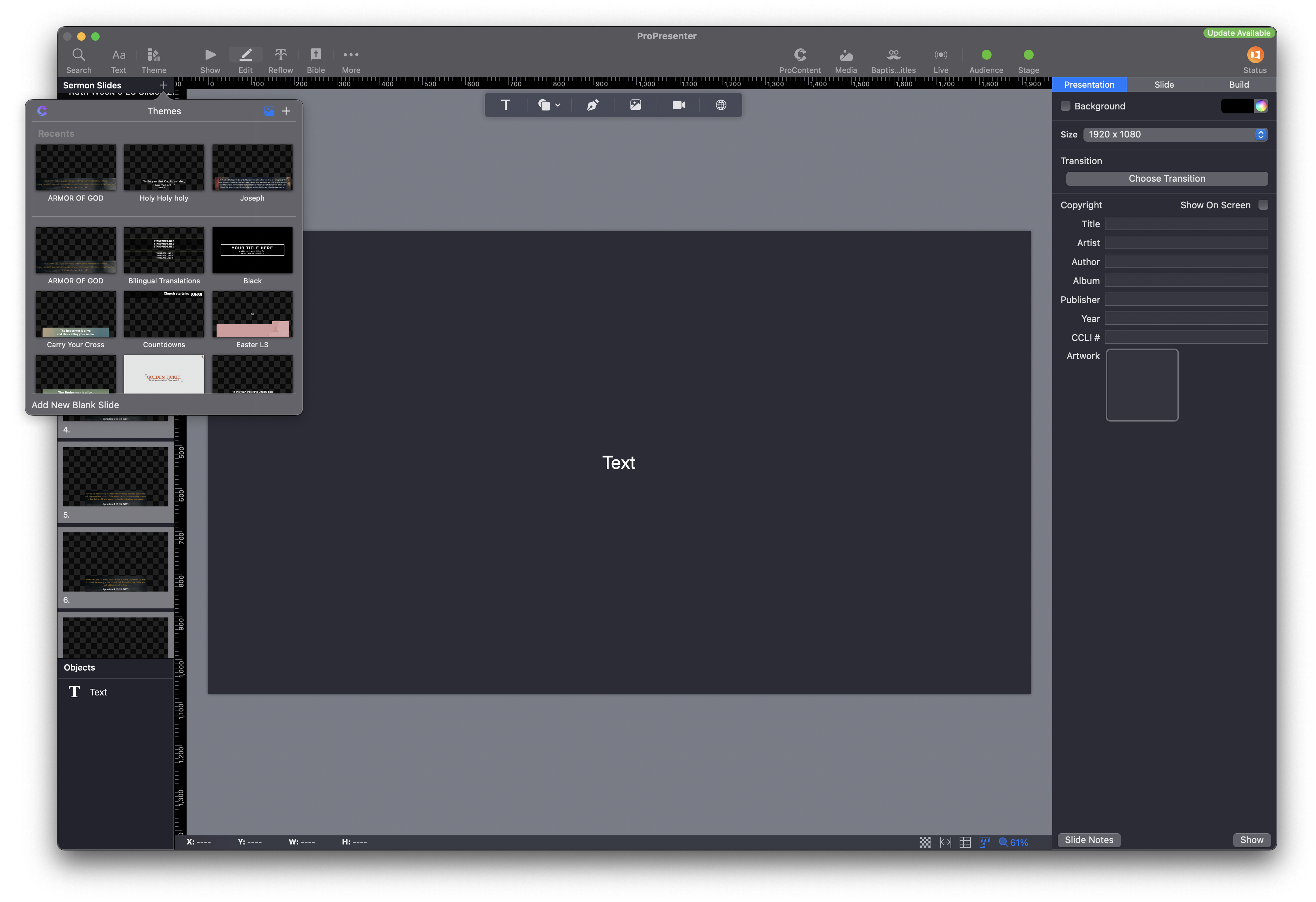
Navigate to the Themes tab and click the + icon to create a new theme.
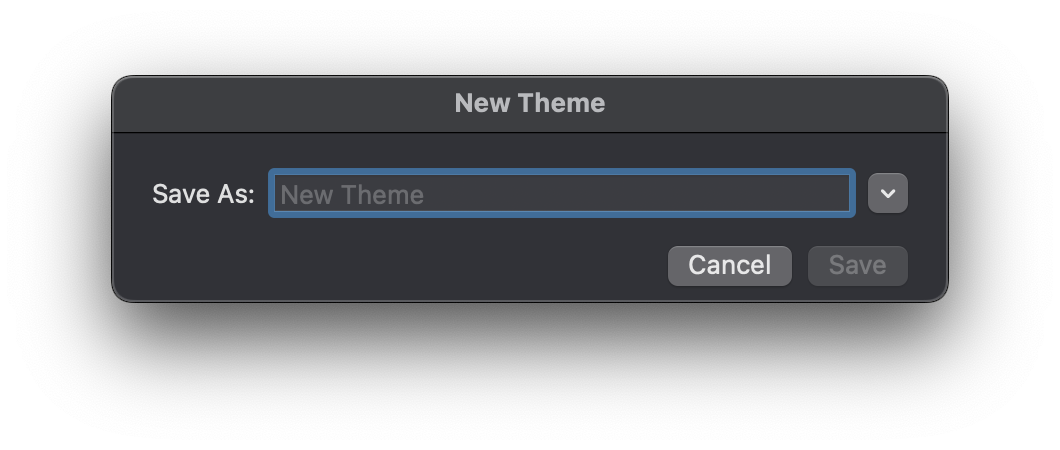
Name the theme according to the series you are working on.
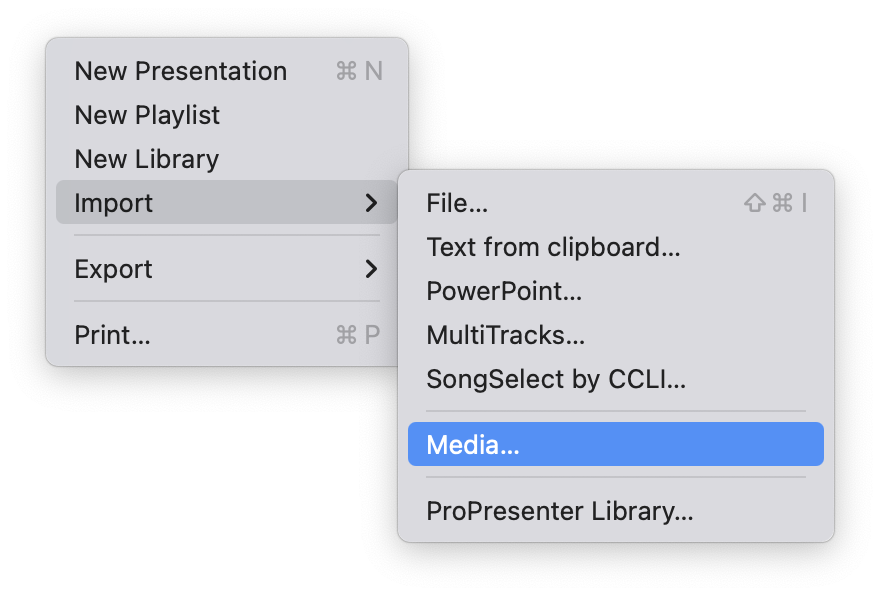
Import your template into the new theme.
After importing, add a text box to the slide. Adjust the text box so it fits properly within the lower thirds area.
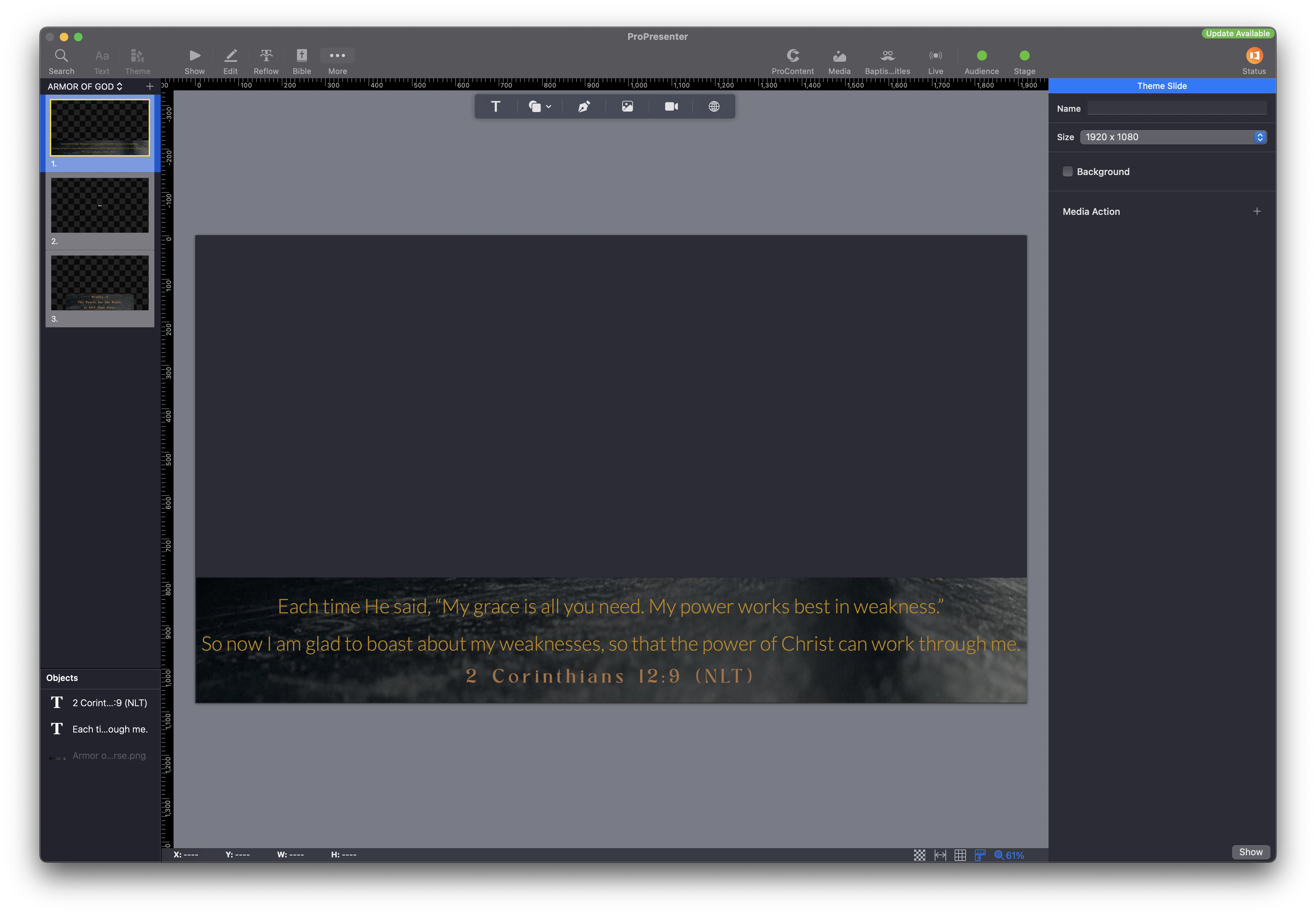
Copy the text from your series and match the font and color to the series style as closely as possible.
Add a second text box for the Bible verse.
Position this text box at the bottom of the slide. If possible, use the same font and color as the series text for consistency.
When the layout is complete, click Show to apply your edits.
Go to another slide, click Edit Slide, then open Themes again.
Select and apply the theme you just created to ensure consistent styling across all slides.