First Slide of Songs
River Oaks Church - Updated February 2026
Inside of ProPresenter, for every first slide of a song, there is an important step to make sure the slide sets the screens to the right look. While there are faster ways to do this in ProPresenter, unfortunately, the most reliable way is to manually set these triggers on every single first slide.
In the screenshot below, you will see an example of a normal first slide of a song that has 3 elements in the top left corner.
- Video Input: This input grabs the background videos from the
worship-mediaMac mini that has timecoded backgrounds on it - Looks: This option ensures all of the other screens (Ex. LED Wall, Projectors, Live Stream lower thirds), all have the correct lyric looks on them.
- Stage Screen: This sets the confidence screen to have the correct view on it
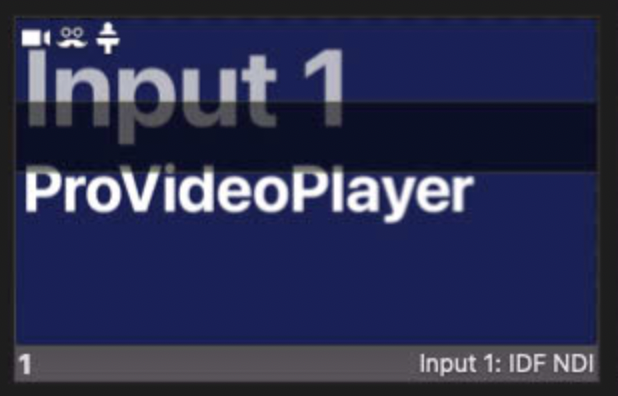
These options are all editable by right clicking on the slide, and adjusting the settings inside of that menu.
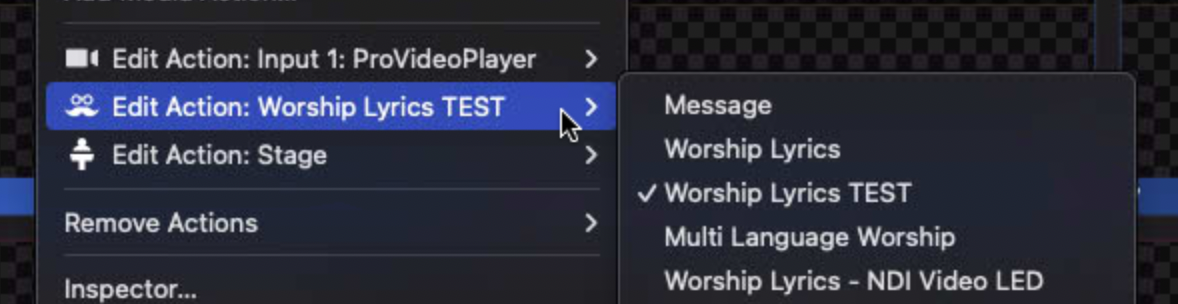
When setting up a blank slide (it would be blank for new songs), you need to right click and Add Action, and then add a "Audience Look", "Stage" setting, and "Video Input". The values they should have are listed below.
- Video Input: Should be set to "ProVideoPlayer" (Input 1)
- Stage: If it's a worship song, the stage setting should be "Worship". If it's a message or announcement slide, it should be "Message"
- Audience Look: This should usually be "Worship Lyrics TEST", but would be "Message" during the message.