Importing Announcement Slides
River Oaks Church - Updated March 2025
Begin with downloading the slide onto the Mac. The Mac does not have AirDrop, so downloading from Google Drive is required. Save it to the Downloads folder. Once it is in the folder, you can import it into ProPresenter.
Alternatively, if you have access to UniFi connect, you're able to download the slides from the signage software directly by going to My Media > Media > English, selecting the slide you want, right clicking on the preview of it, and opening image in a new tab. Then right click and save the image.
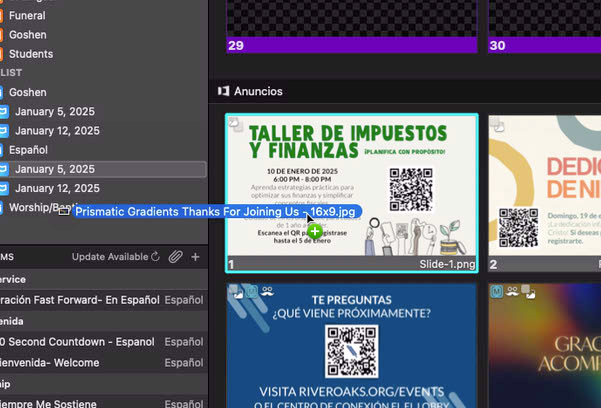
To import the slide, drag it onto the previous slide already there. Release the mouse to import the slide.
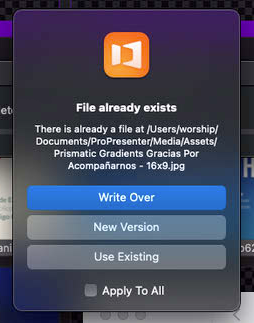
If you get this question after importing the slide, it's a good idea to select "New Version" so that ProPresenter keeps the previous version, and adds the new version to this slide. You could also select "Write Over" to replace the old slide everywhere in ProPresenter.
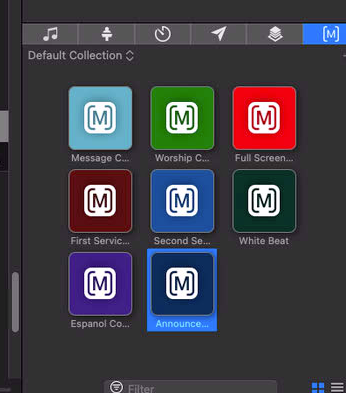
After importing the slide, it is very important to add the macro to the slide. The macro tells ProPresenter to display the slide on different screens. You must add the "Announcement" macro.
To add the macro, you simply find it in the macro section in the bottom right corner, and drag the macro on top of the slide you imported.

You will see the "M" appear in the top left of the slide, showing that the slide has the macro on it, and is ready to display on the correct screens.
That's it!