Weekly YouTube Setup
River Oaks Church - Created August 2025
Each week, someone needs to create YouTube streams, and link them to the website. This guide breaks down the process. This cannot be automated as of now, so it is still manual.
Creating the Streams
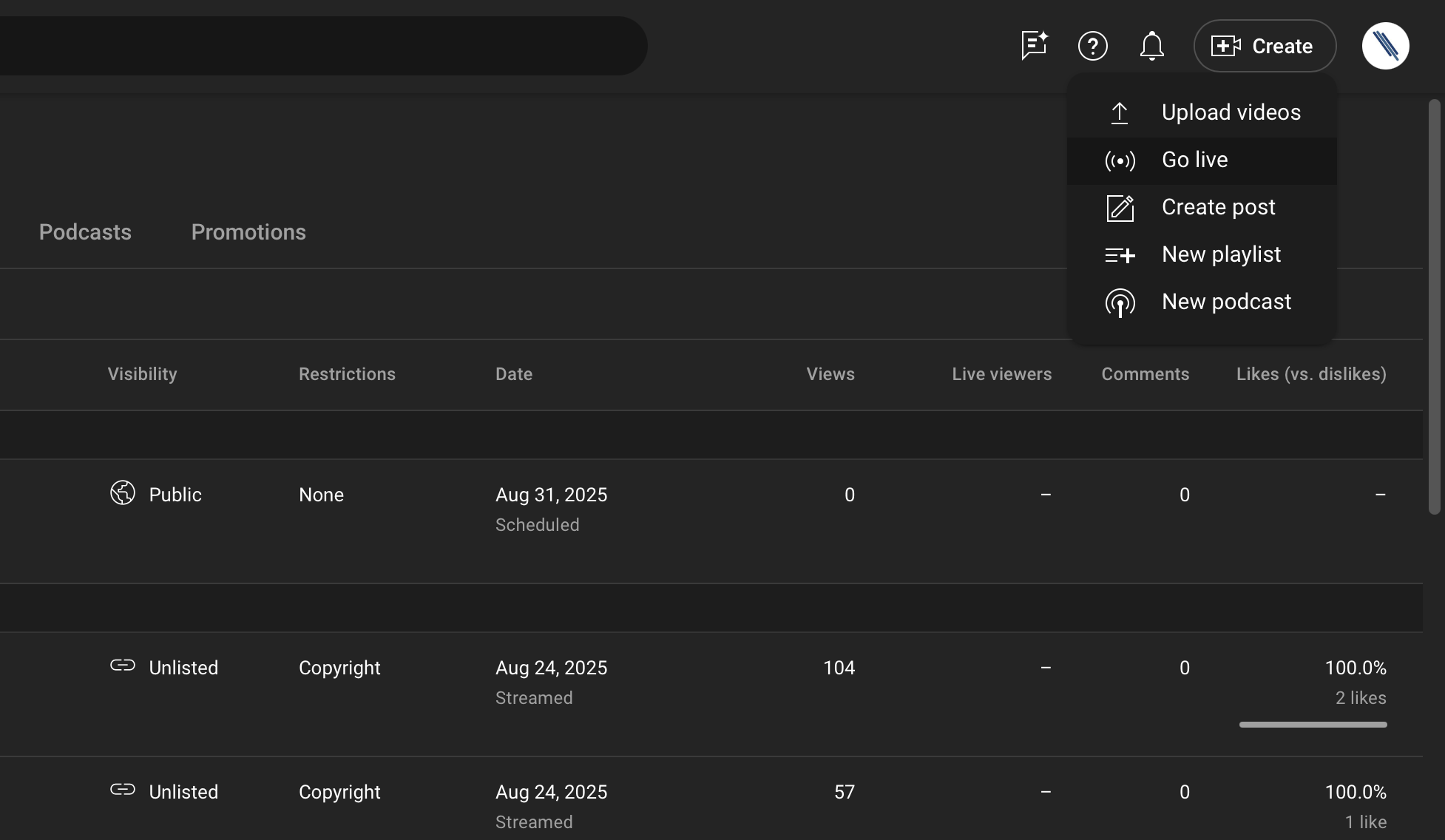
Step 1 is to create the streams. Login to the YouTube Studio and click on Create, and select Go Live.
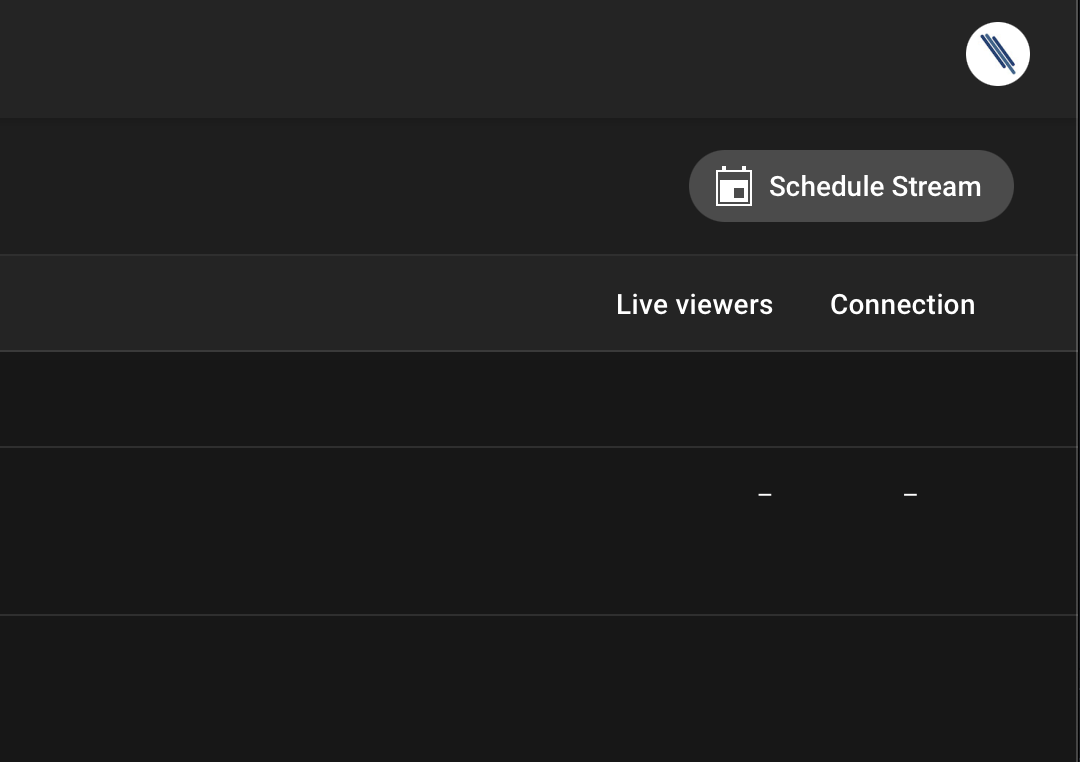
In the live dashboard, navigate to the Scheduled Streams. Click on Schedule Stream.
You will want to select the MOST RECENT, (relevant to the stream you're creating) stream.
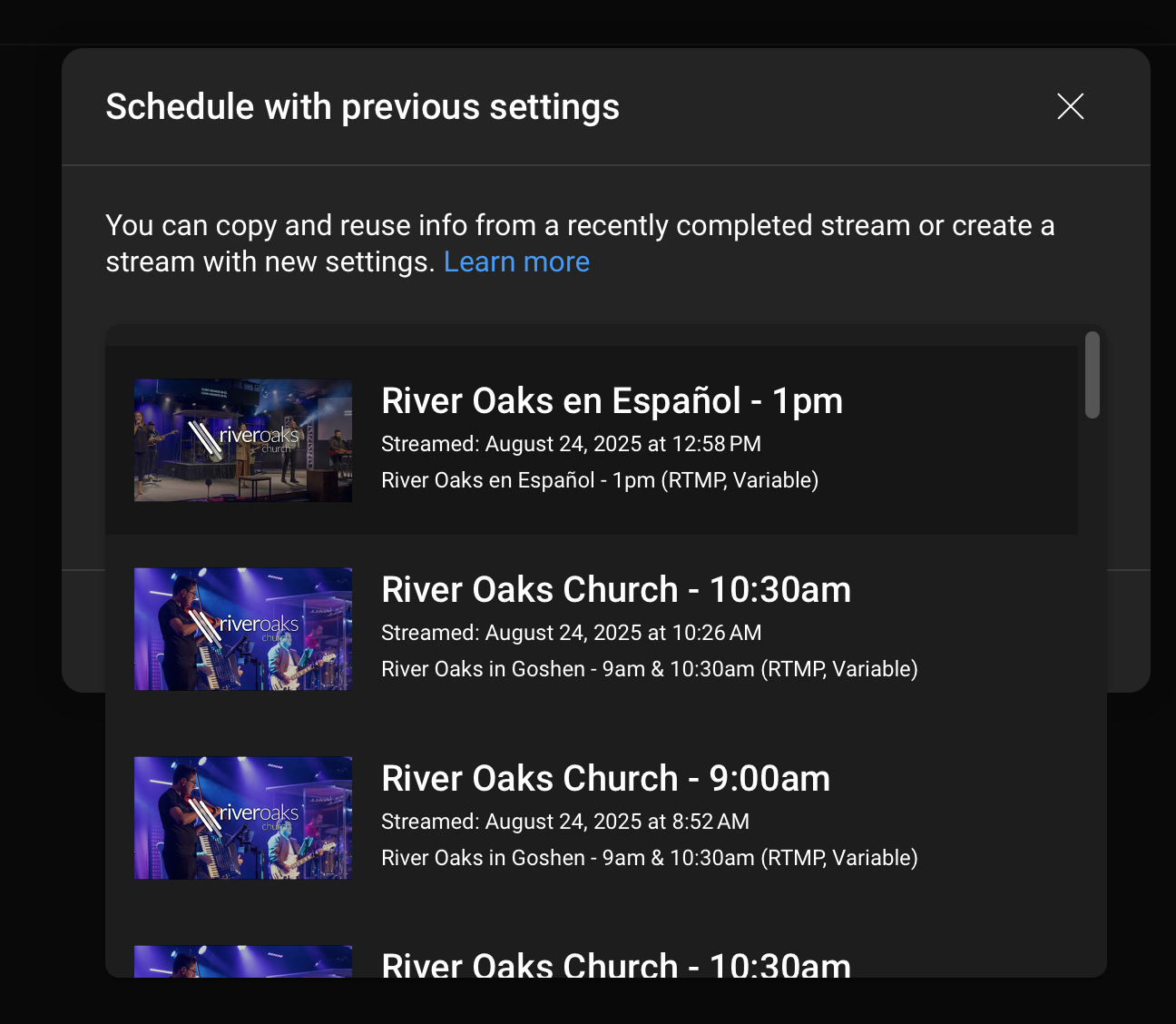
Each week, we have 3 streams.
- English 9am
- English 10:30am
- Spanish 1pm
Select the most recent stream. If it's a funeral or special event, scroll through the list and find one.
Click on reuse details.
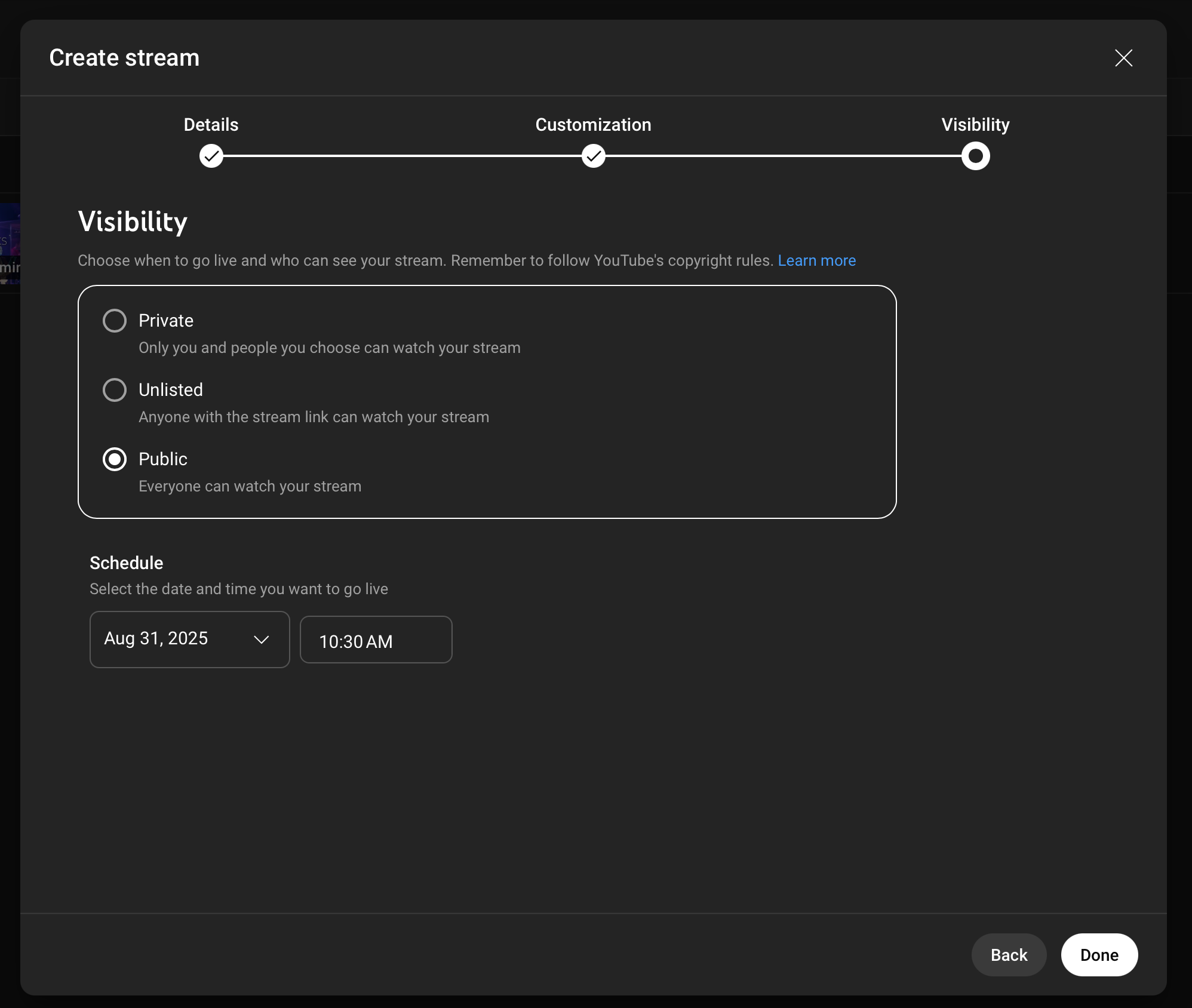
Skip ahead, and go to the visibility tab. The stream needs to be PUBLIC, and scheduled for the time the service is scheduled to start.
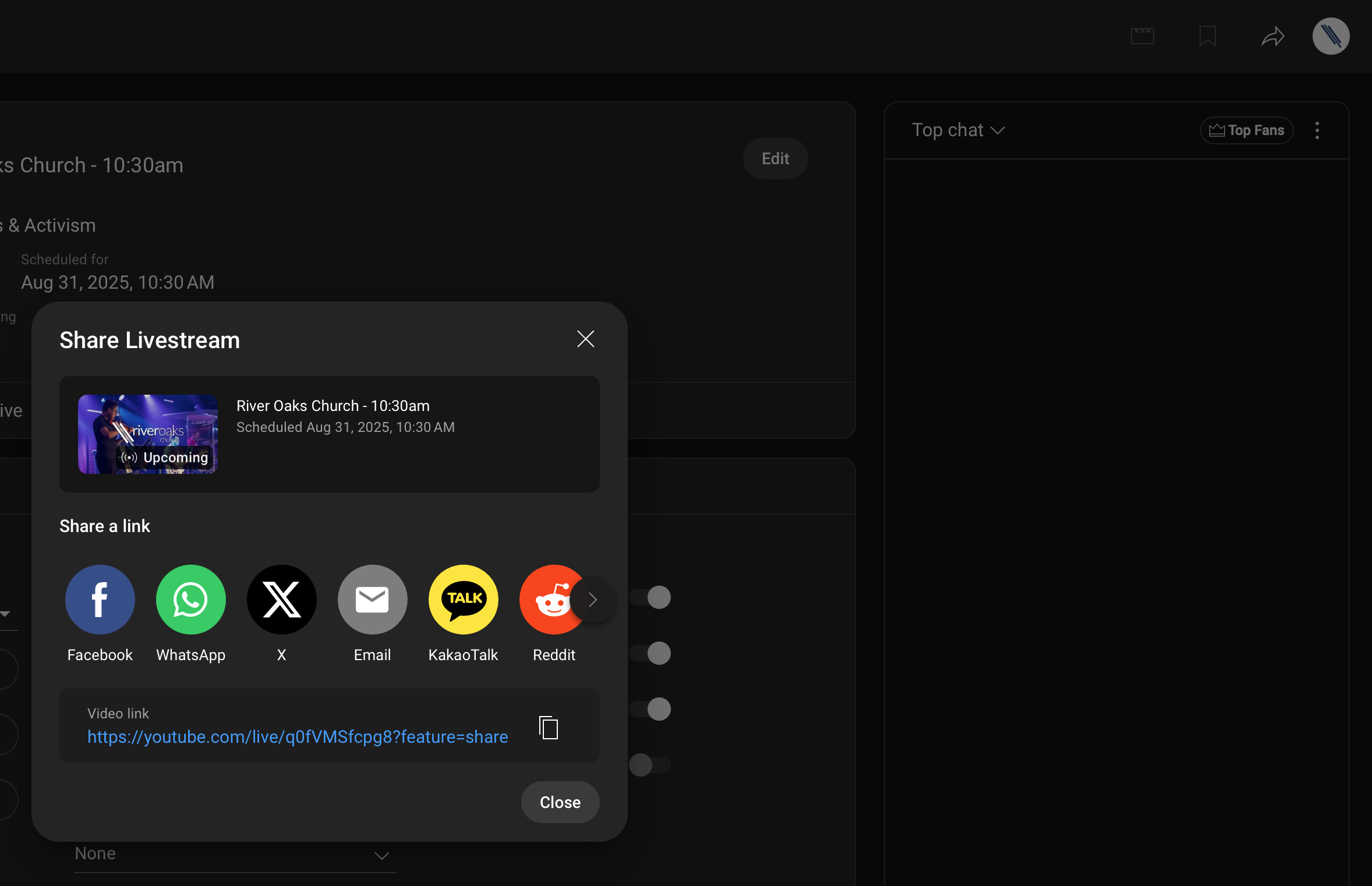
Once created, click on the share icon in the top right, and then copy the link that appears.
Proceed with the next steps.
Updating the links
The next step is to update the links that the congregation gets from the riveroaks.org website. Since I got tired of logging in (and because we could use this for other projects), I have created a short link manager. Any link that is ro.church/ is a short link. To edit the short links, log in to the tech portal.
Go to Web > Links.
There are 3 options you may use. -- For updating the services, you will usually use the schedule link for the /goshenlive and /espanollive links.
-
Create new link: This automatically gives you a random link, or you can customize it. This is nice for social media posts where oyu may want to share a short link. The nice thing is that you are able to change the link afterwords if you messed something up :)
-
Change link: This lets you change a live link so that you can route it somewhere else. This is what you should use each week for the youtube streams.
-
Schedule a link change: This lets you change a link, at a certain time you want. This is how I'm able to create all the weekly streams at once, and have the goshenlive link auto switch to the 10:30 service, at 10:15am.
Tips for updating the links:
-
Use links that don't have any attached flags (ex. nothing with anything after a ? at the end)
-
Give the links 30 seconds to update
-
If it doesn't seem like it's working, open it in a Guest or Incognito tab or another device.
For Espanol services, only the /espanollive link will need to be updated. For English/Goshen services, the /goshenlive link needs updated TWO times. 1 time at 8:45 AM (for the 9am service), and 1 time at 10:15am (for the 10:30am service).
Updating the links 15 minutes before the service is ideal, so that if users try to get on early, they get into the right YouTube stream.