Importing Sermon Slides
River Oaks Church - Updated January 2025
The sermon slides will be available in the shared drive on Google Drive (the productionmedia@riveroaks.org account is already logged in on the worship-mains Mac mini). To import the slides, download them from Google Drive, and open the .key (Keynote) file. Once open, you will see the slides on the left hand column (they are editable if needed). If the account is not logged in, the password to the account is [Password redacted. Please check Bitwarden.]
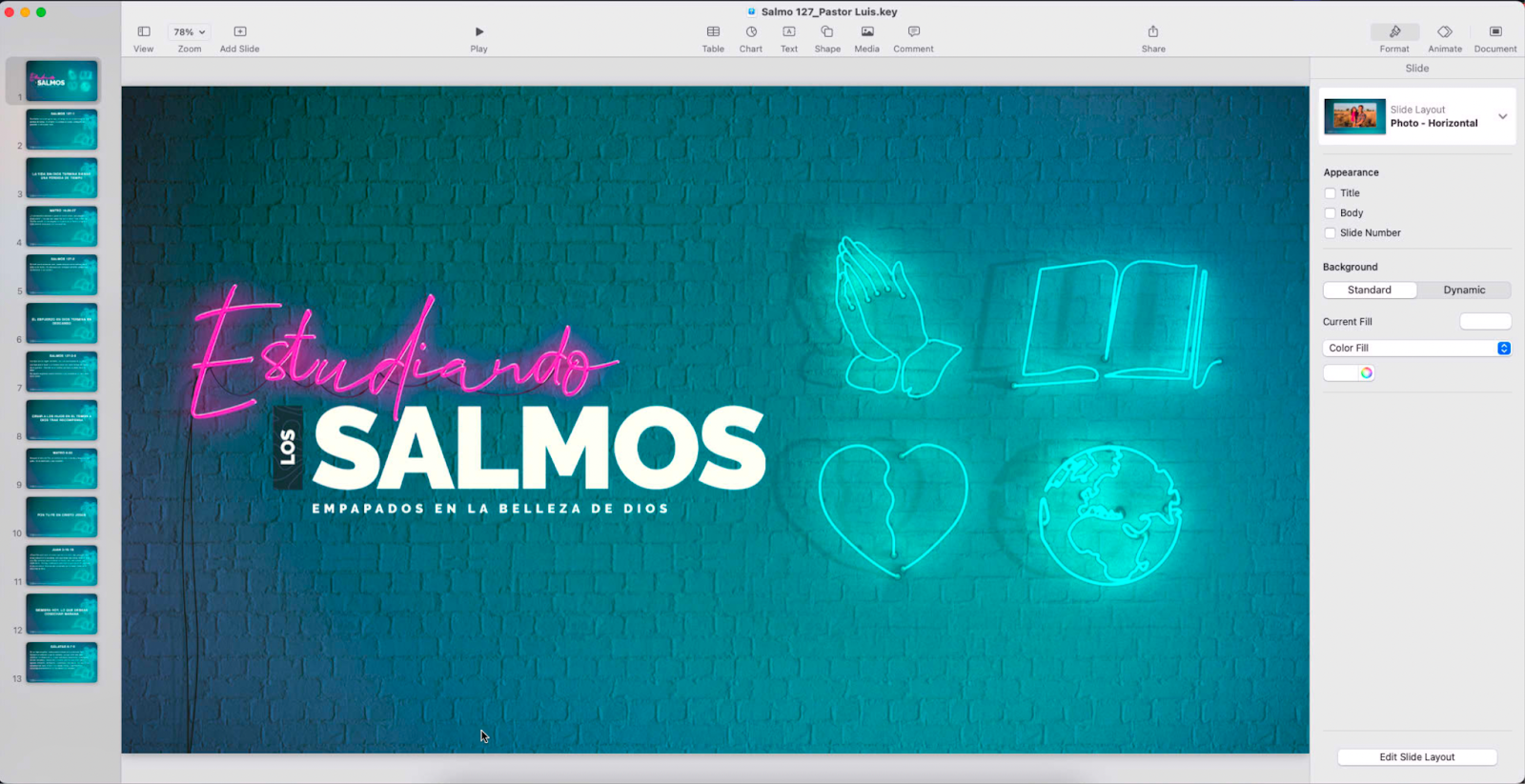
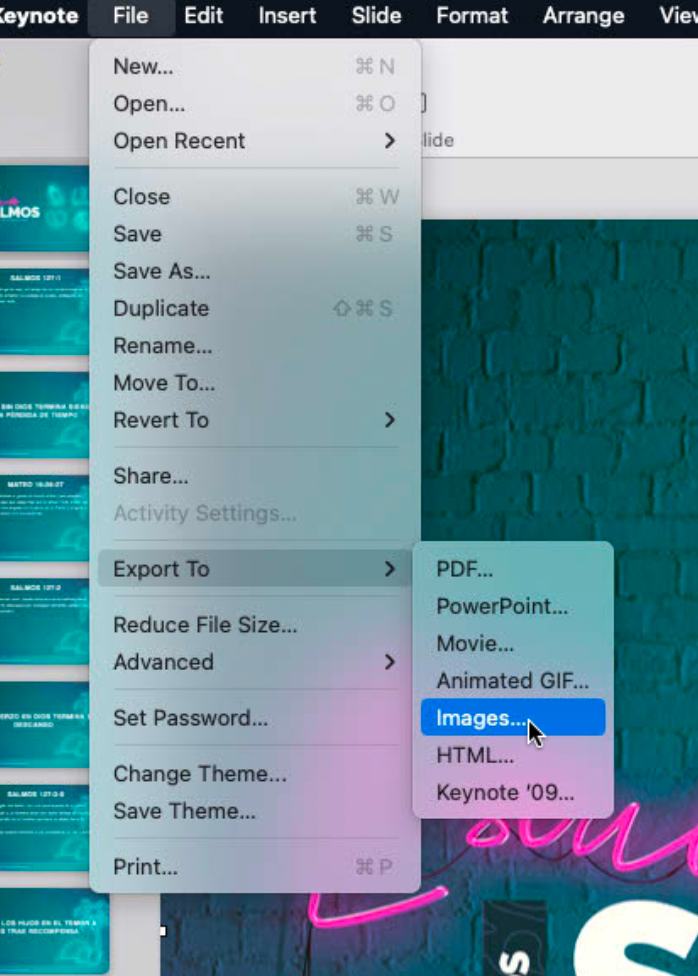
Now, click on File > Export To > Images in the top left hand corner of the screen.
Save them to a folder (probably in the downloads folder), and open it in Finder. Select all but the first slide and drag it into the empty space in ProPresenter under the Message playlist. (First slide is not needed as the existing title slide in ProPresenter fires macros to set the confidence layouts.)
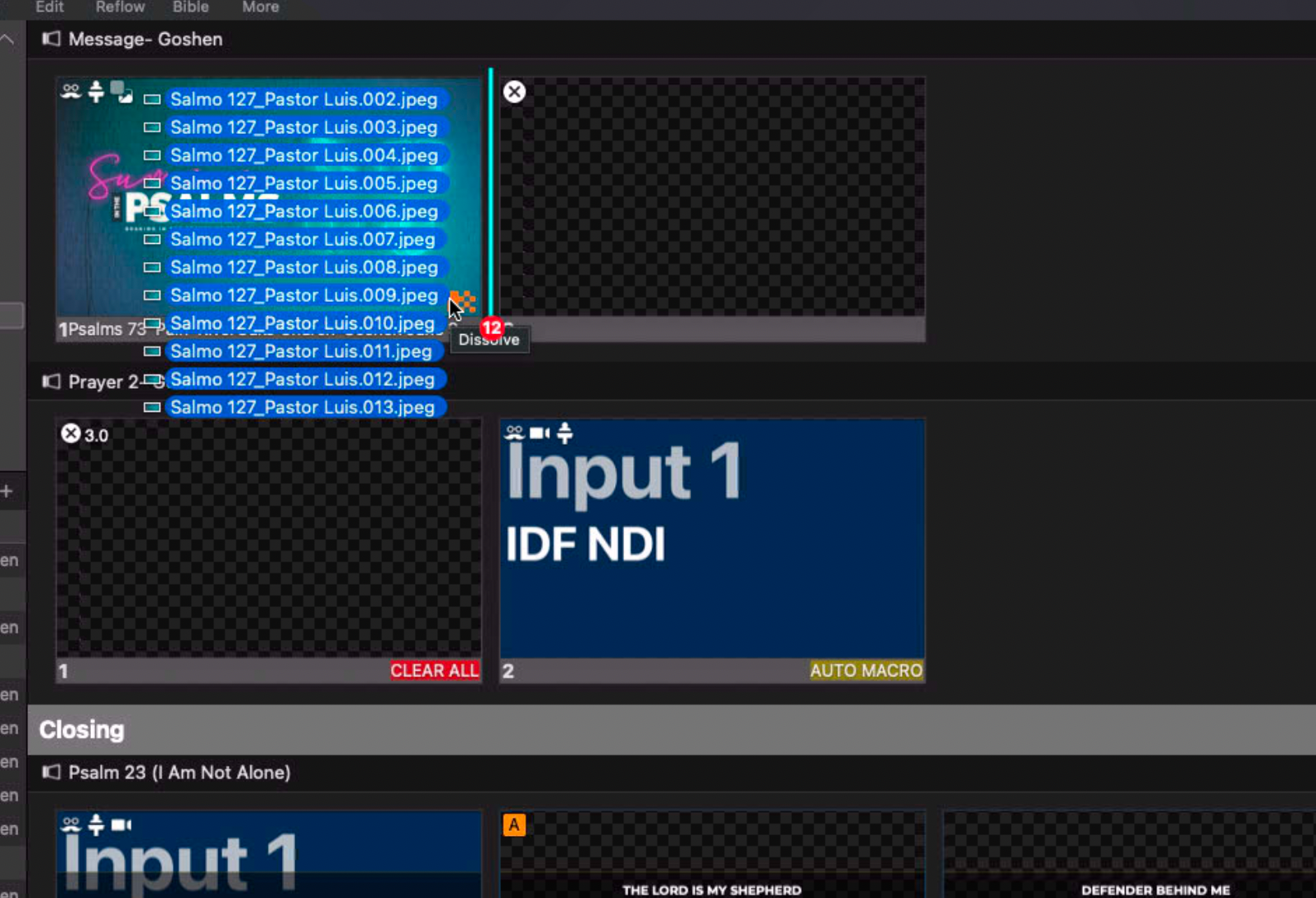
You’ll notice a line through all of the slides. To fix it, select the ones with the line on them, right click and hover over Themes > River Oaks Goshen, and select Mains.