FaceBook Directions
River Oaks Church - Updated July 2024
As soon as OBS starts streaming from the worship-switcher iMac, it automatically sends to YouTube and FaceBook. YouTube automatically goes live with the events created earlier in the week. For every service streamed, FaceBook requires an event to be created as the event goes live.
Starting FaceBook Streams - To start the streams, use the worship-audio iMac. FaceBook should be logged in; if not, the credentials are stored in Bitwarden. –There should be no 2 factor authentication for the account as of now.
Begin with navigating to facebook.com and finding the correct account by selecting the profile in the top right hand side of the screen. Note: The “River Oaks” account is the manager account, and is not used for posting
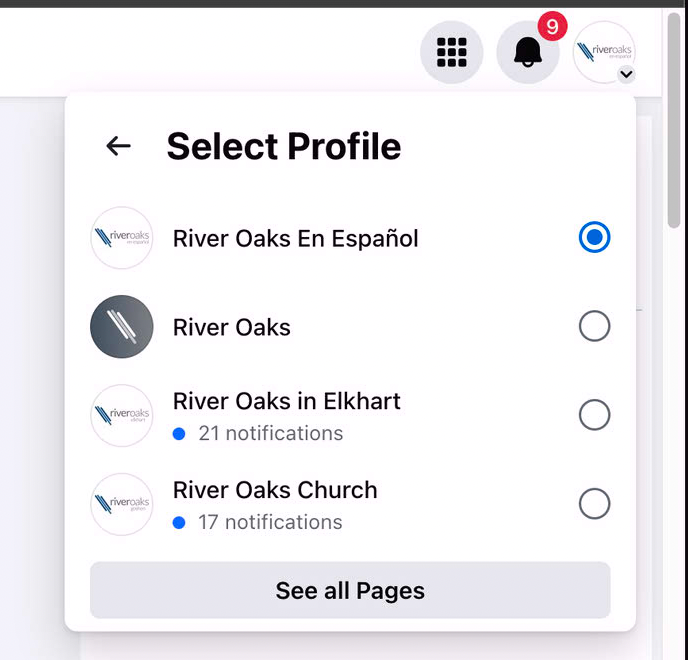
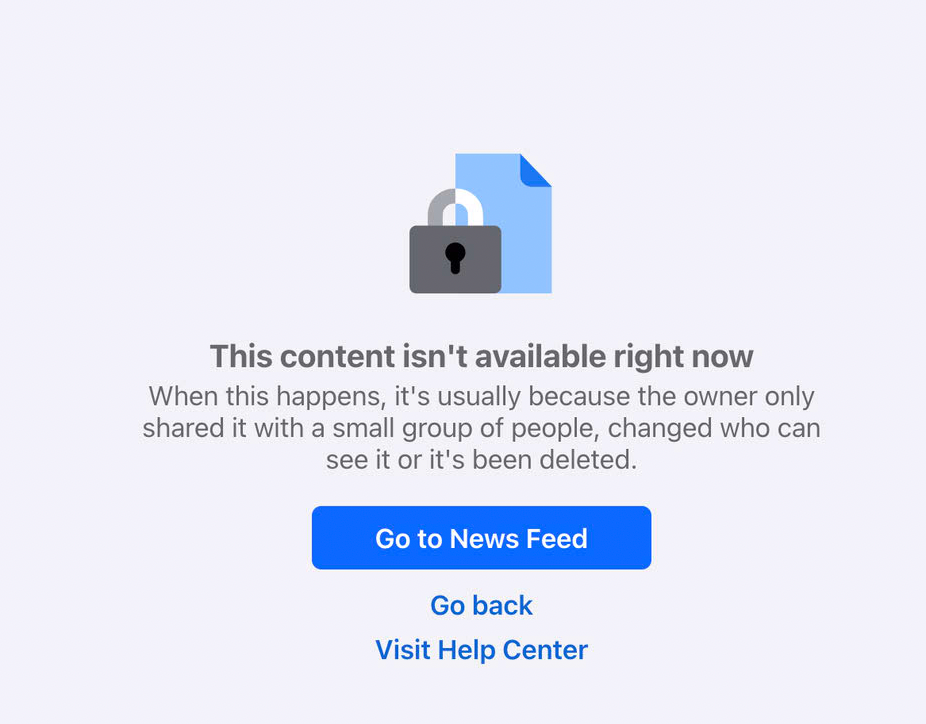
If you get an error like this while switching accounts, re-select the profile in the top right!
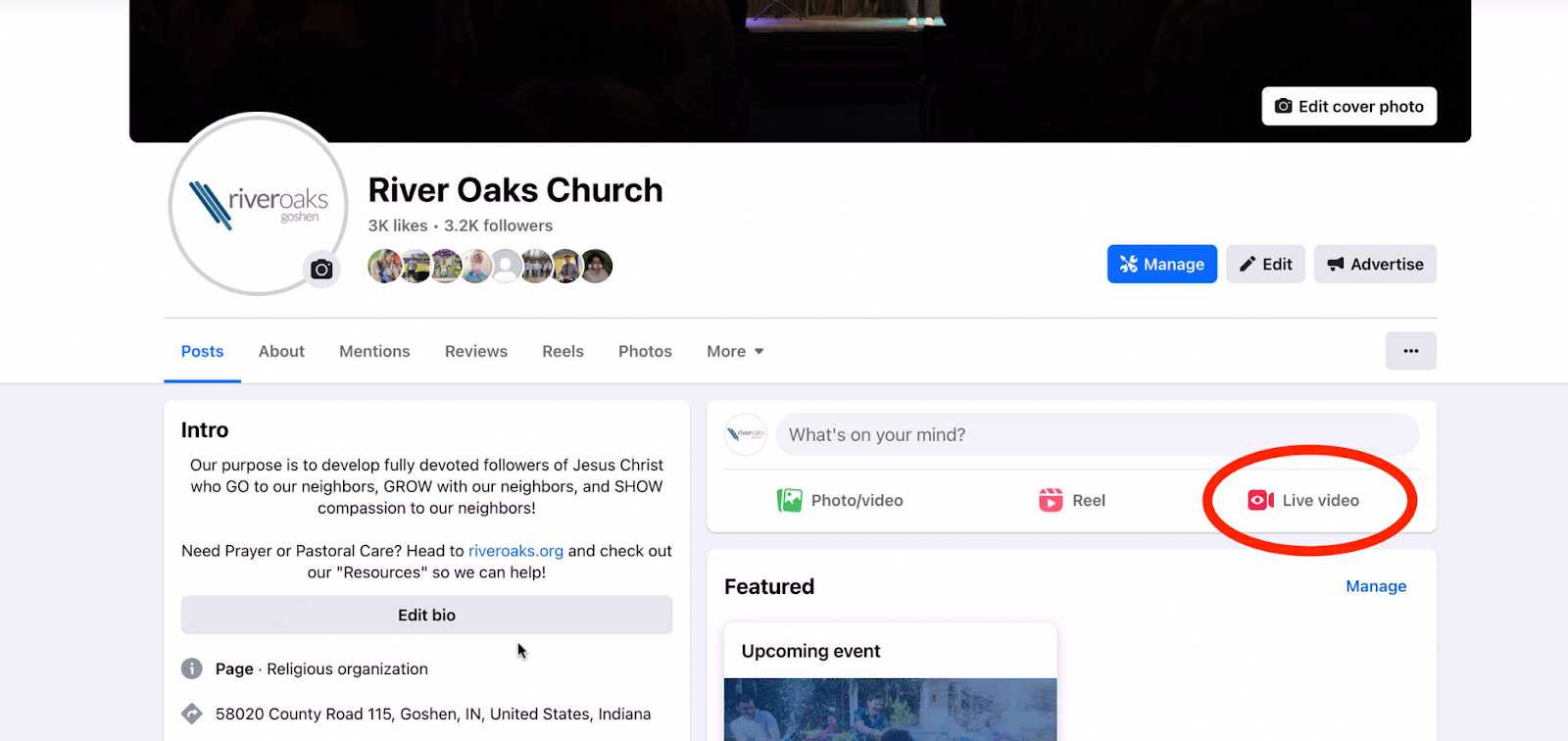
Once you are on the home screen for the account you want to go live, click on Live video in the right hand side near the new post section.
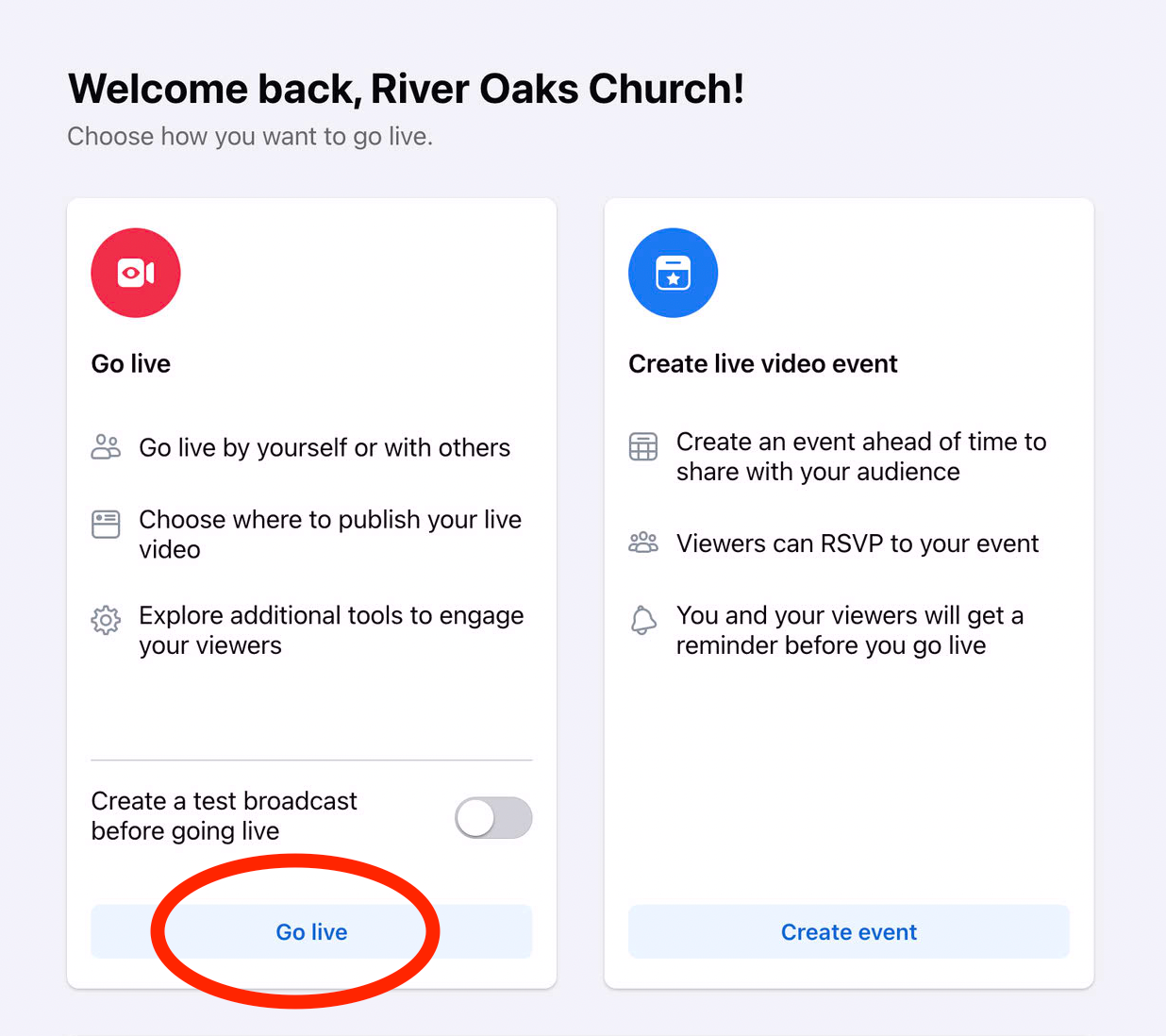
Then select Go live.
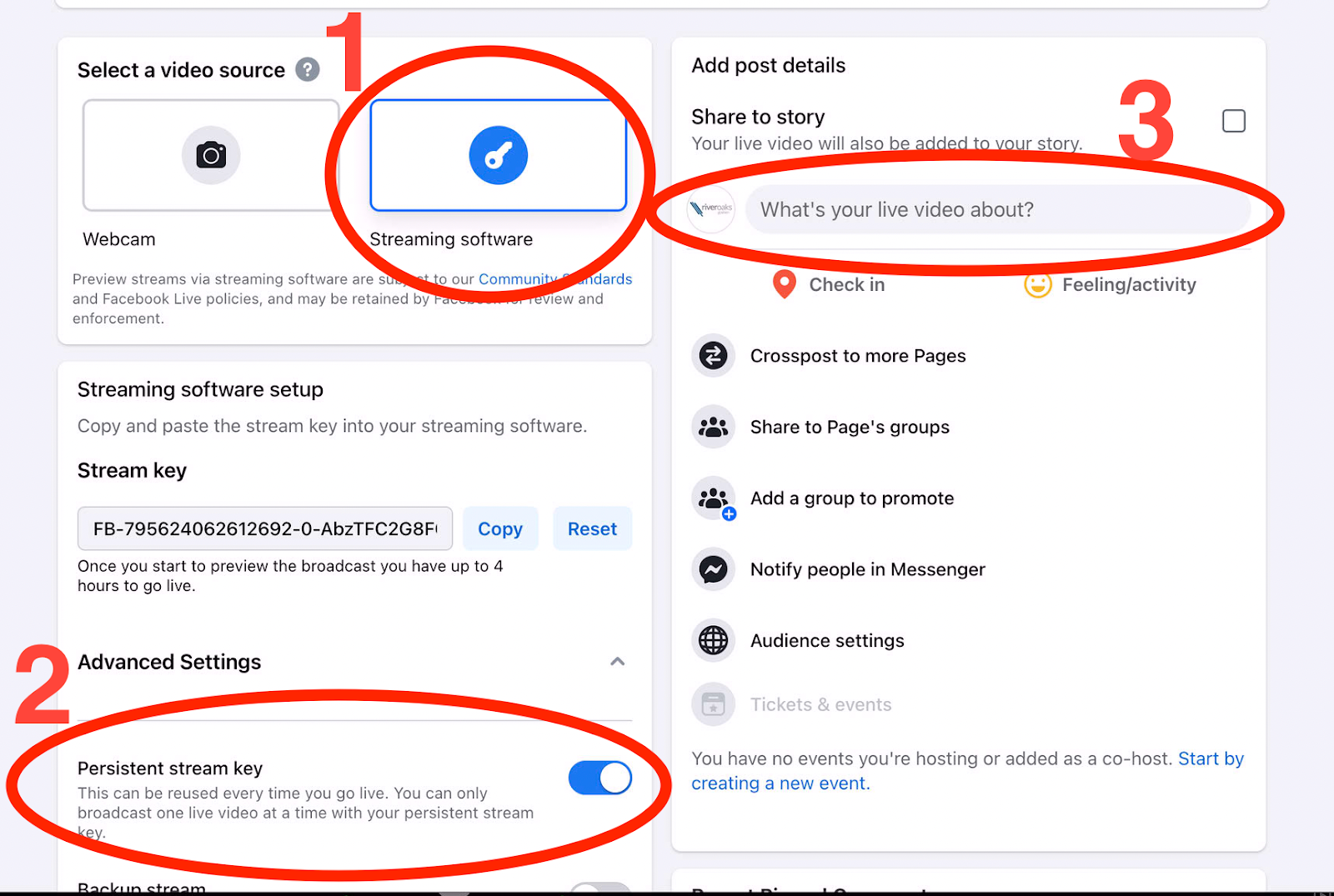
Next, complete the following 3 steps in the order you see below:
- Select Streaming software if it isn’t already selected
- Check the box for Persistent stream key. Note: If the stream doesn’t want to “Go live” later, toggling this check box sometimes helps!
- Click on the section “What’s your live video about?” and fill in the title and description with the correct information listed below.
Titles / Captions for all Goshen/Espanol FaceBook Events:
River Oaks Church in Goshen - 9am
River Oaks Church in Goshen - 10:30am
River Oaks Church en Español - 1:00pm
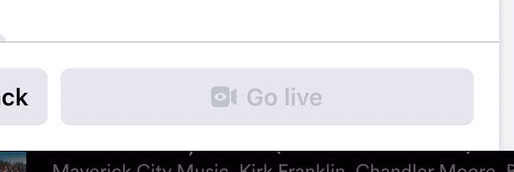
If all goes to plan, the Go live button will turn blue and you are ready to go live! The event ends automatically once the stream has been stopped from OBS.