Multitrack Recording
River Oaks Church - Updated April 2025
Why
I try to multitrack record every rehearsal and service, so that at any point in time, we can go back and re listen to any channel of audio. This is extremely helpful in the event of Dante issues, as we can see the first devices to have problems.
How
While there is an audio recording device on the rack under the console, it only records the LEFT channel of audio (to the PA), and Timecode. It doesn't record much.
That being said, I have been using Logic Pro on the worship-audio Mac to multitrack record.
Multitracking in Logic
To do this, open up Finder on the worship-audio Mac. Go to "SSD 1", and duplicate the folder labeled "March 2025 MT Template"
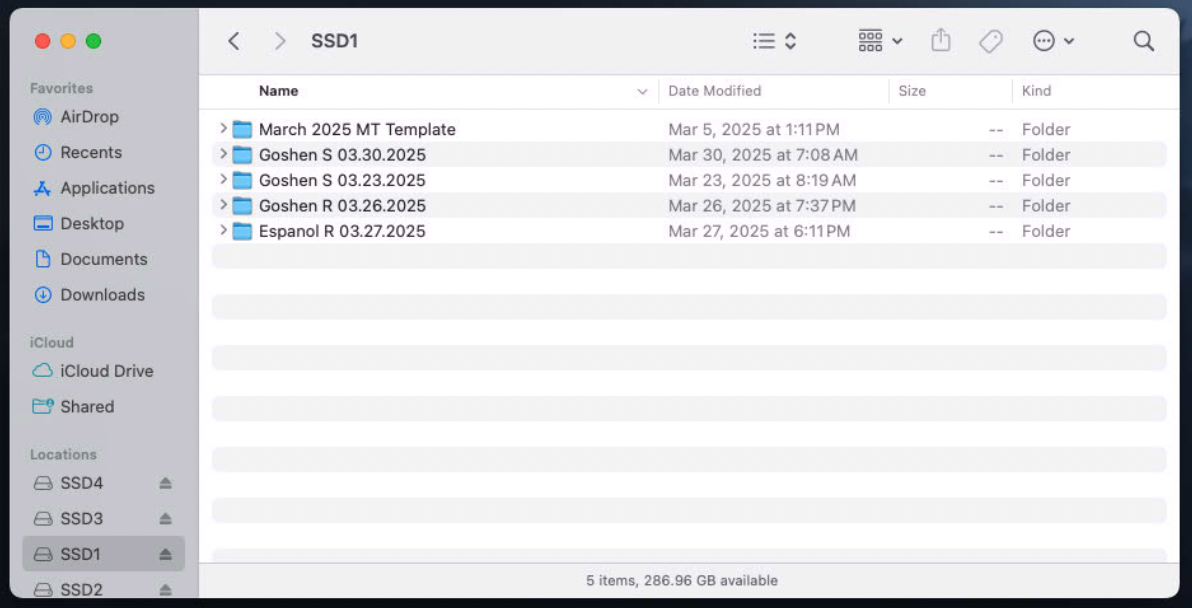
Next, rename the folder to have the following format:
-SERVICE- -SERVICE TYPE (R or S)- DATE (MM.DD.YYYY)
Examples: * Goshen S 04.06.2025 * Baptism R 03.10.2025
Now, copy the exact same name of the folder, and name the Logic Pro file to match it. (Open up the new folder you just duplicated, and you will see a Logic Pro File in there).
Once the Folder and the Logic Pro file have the SAME NAME, open the Logic Pro file.
This will open Logic on the Mac, and give you the option to setup the recoding.
Setting up the Recording
You need to make sure all the tracks have recording enabled on them, to do this, with all tracks selected, click the R icon (to the left of the I).

The picture above displays just one channel, but on your screen, you will see all of them lined up at the bottom of the screen. Select the R, and that will arm everything for recording. The R on the tracks will flash red when enabled.
To start recording, click the red circle at the top of the screen.
To stop recording, click the square icon to the left of the red circle.